
Connecting a tool
Authorize an outside app once, and any agent with permission can work in it — no re-entering credentials per project.
Connect an app once and your agents can work in it — filing Asana tasks, posting to LinkedIn, replying in Slack — without you doing the clicking. You authorize the tool a single time, and it's available to work across your projects.
Connect it once
You add a tool from your organization's integration settings. Only an owner or admin can add or remove a connection. Two ways to connect, depending on the app:
- Paste a token — for most tools, you generate an access token, API key, or personal access token in that app and paste it in. Some apps ask for one extra detail, like the account ID for a social profile.
- Authorize with Slack — Slack uses a one-click sign-in instead of a pasted token. You approve the permissions Busy Bee needs (reading mentions, posting messages, looking up users), and the connection is created for you.
Your token is encrypted the moment you save it. After that, the settings page only ever shows a masked label — never the full secret again.
What you can connect
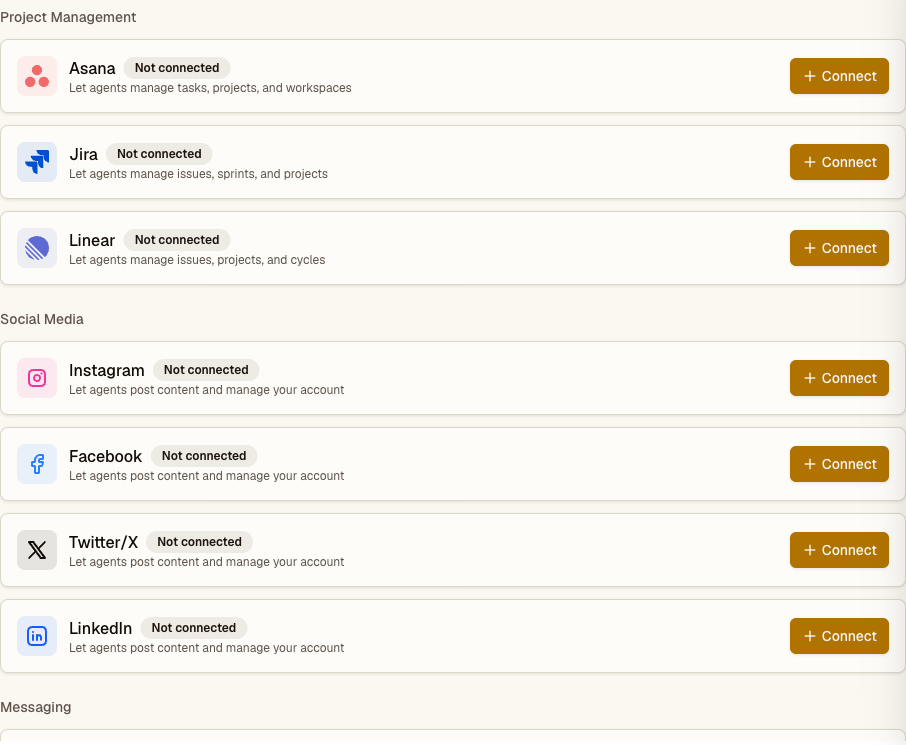
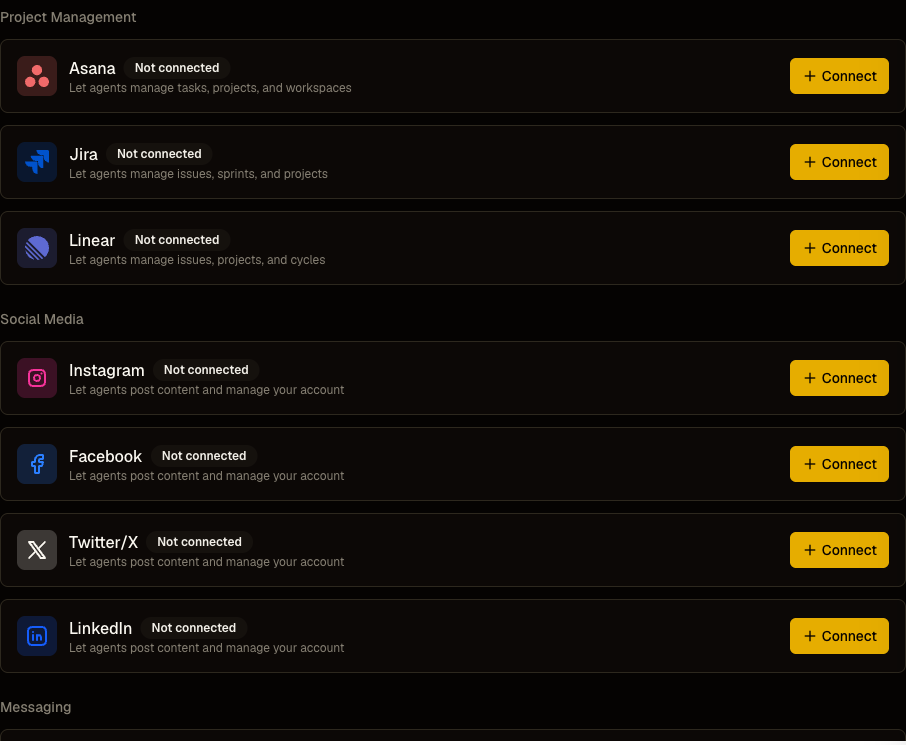
- Project management — Asana, Jira, Linear
- Social media — Instagram, Facebook, Twitter/X, LinkedIn
- Messaging — Slack
- Infrastructure — private Docker registries, and custom environment variables injected into agent sandboxes
Shared across your projects
A connection belongs to your organization and is available to every project in it — you connect once, not per project. When you have more than one credential for the same app, the most recent one you saved is used by default. Custom environment variables are the exception: those inject into every sandbox, and you can override them per project from that project's Settings tab.
Then agents act in it
Once connected, agents pick up the credential automatically when a task calls for that tool — you don't attach it per task. What each tool lets an agent actually do is covered in Connectors.
Where it fits
- Connectors — what agents do inside the tools you connect
- Integrations — the full list of connectable apps
- Hives — the teams that use these tools on your behalf